
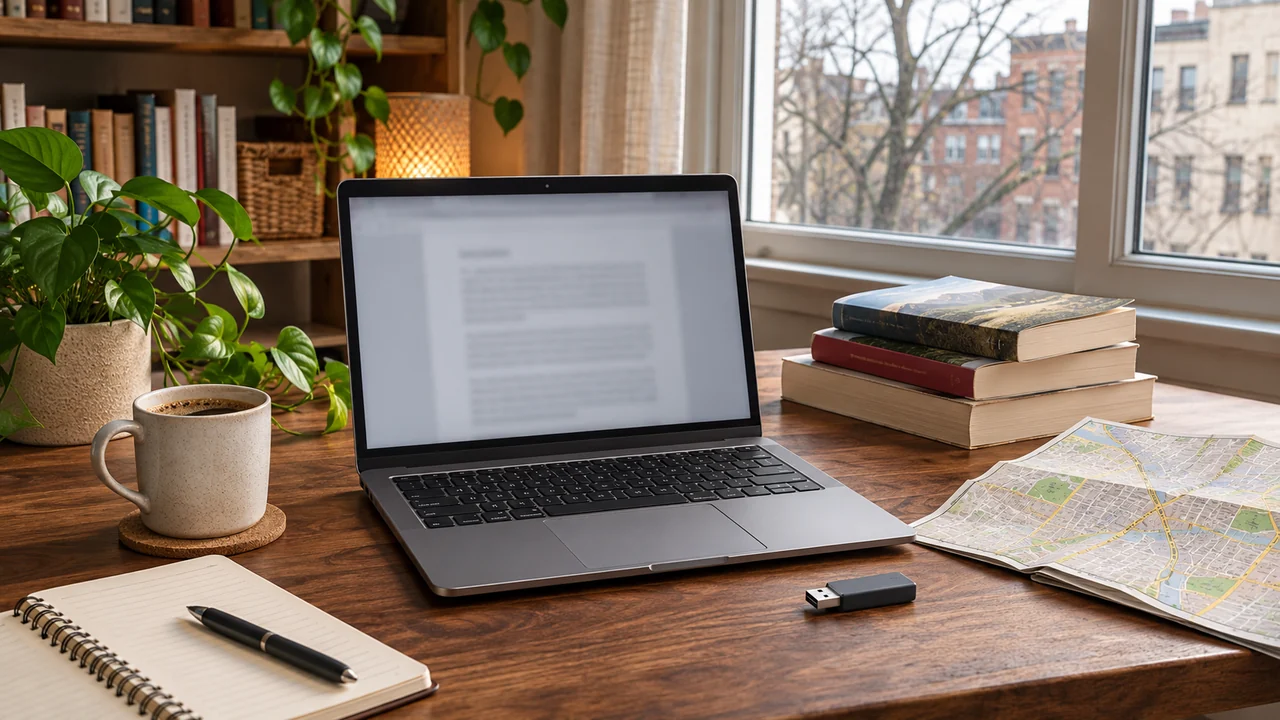
Your laptop has a full battery. The document you need is behind a login that won’t load. Refreshing the page doesn’t help. Somewhere, a status page is having a very busy morning and the help desk is overwhelmed.
Verdict: build an offline kit around the work you can actually finish without a connection. Save your working files first, then add a local AI helper, a reference library and downloaded maps. You may already own enough storage. Buying another drive can wait until you’ve checked. A pen and paper always carries a romantic nostalgia if needed.
Start with tomorrow’s work
While you have a tried and true connection, download the brief, reference PDFs and files you need to edit. Open them in the app you intend to use, with Wi-Fi off. A shortcut to a cloud file is a convincing substitute for the file itself.
Some jobs still need a live service. An offline kit won’t restore a shared database, send an email or join your call. Its job is to leave useful work available while those things recover. See the full outage plan for connection and power backups.
Give each tool a job
Local AI for drafting and sorting ideas. LM Studio offers a graphical app; Ollama offers local models through its app and command-line tools. Both support free local use alongside optional cloud services. Choose a downloaded local model. LM Studio’s offline documentation confirms that core chat works without internet once the model is available; web search and cloud models are another matter.
Kiwix for reference. Install the reader and download a content package, called a ZIM file. That gives you a dated snapshot of Wikipedia or another supported resource. Check the current package size and date instead of assuming the largest edition will fit. It is a library you packed earlier, so it won’t know what happened this morning.
Organic Maps for getting somewhere else. Its maker confirms that downloaded maps work offline. Save your region on the phone where you’ll navigate. Putting unrelated map files on an SSD doesn’t make them available inside the app.
Carrying a model isn’t running it
I have a local AI rig on my desktop and a flash drive with Qwen 3.8 saved in full and quantized versions. Carrying those files leaves you options; running them still depends on the computer you plug into.
Quantization stores model weights at lower precision to reduce their storage and memory requirements. The trade-off depends on the model, conversion and task. A smaller download still needs a compatible runtime and enough working memory. The drive carries the file; your computer does the thinking.
Try a model on a normal work task before adding it to your kit. Ask it to reorganize your own notes, then check what it changed. Useful editing help doesn’t make it a trustworthy source of facts.
Pack the files, then try the setup
Use a portable drive for model files, the Kiwix archive and spare documents. The Samsung T7 Shield is one 2 TB option. Keep the drive you own if it has enough space and works with your computer.
Check the file system before copying a large model: Microsoft lists FAT32’s single-file limit at about 4 GB; exFAT supports larger files. Back up existing contents before changing a drive’s format.
Keep a second copy separately. A Mission Darkness signal-blocking pouch is optional specialist storage, not a requirement for an internet outage. It won’t restore power or connectivity. Start with the spare copy.
Who should skip the AI part
If AI adds little to your work, leave it out. Download your files and maps, switch off Wi-Fi, and finish one ordinary task. What fails in that rehearsal becomes your packing list.
Cited sources
- LM Studio, offline operation; LM Studio, local-use plan.
- Ollama, local-use terms; Ollama, local and cloud operation.
- Kiwix, reader and content packages.
- Organic Maps, offline navigation.
- Qwen, public model card; the founder’s exact files and quantization are unspecified.
- Hugging Face, quantization and memory requirements.
- Microsoft, file-system limits.
More field guides
More Remote Office guides
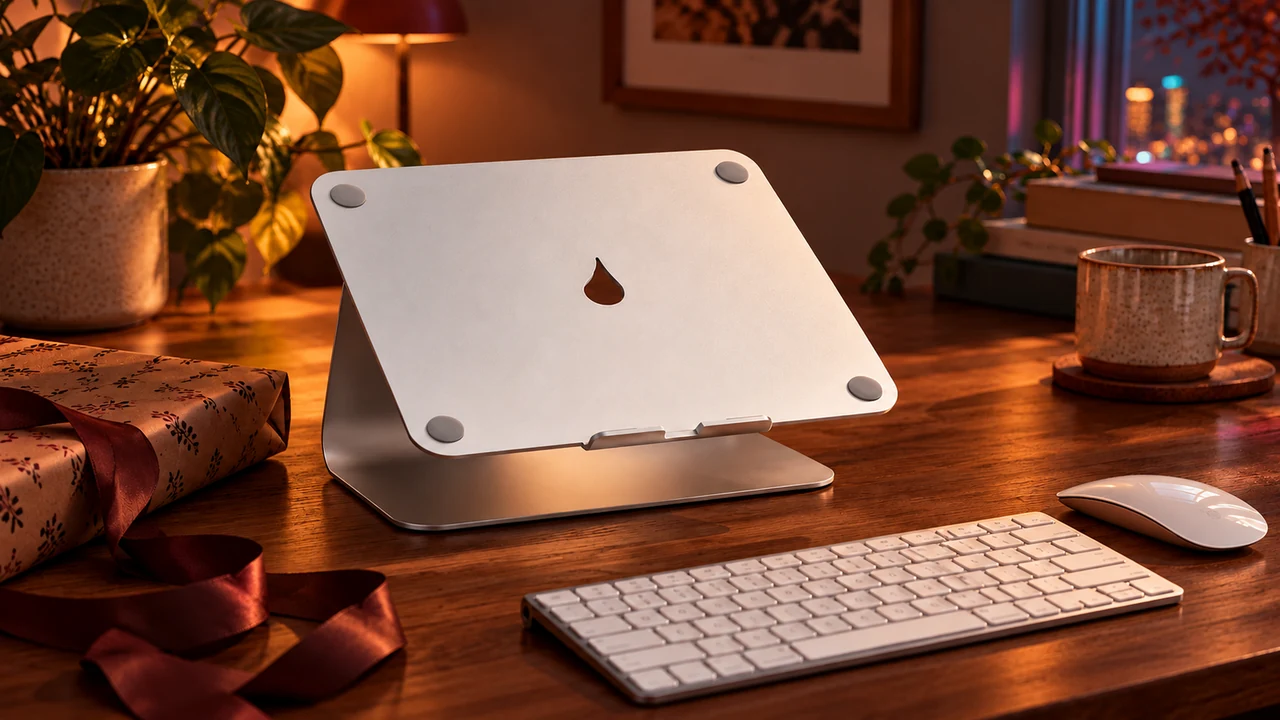
Gifts for Someone Who Works From Home (or From Anywhere)
Useful gifts for remote workers, chosen around their actual desk or travel bag: practical picks, compatibility checks, and the gifts to ask about first.
Read the field guide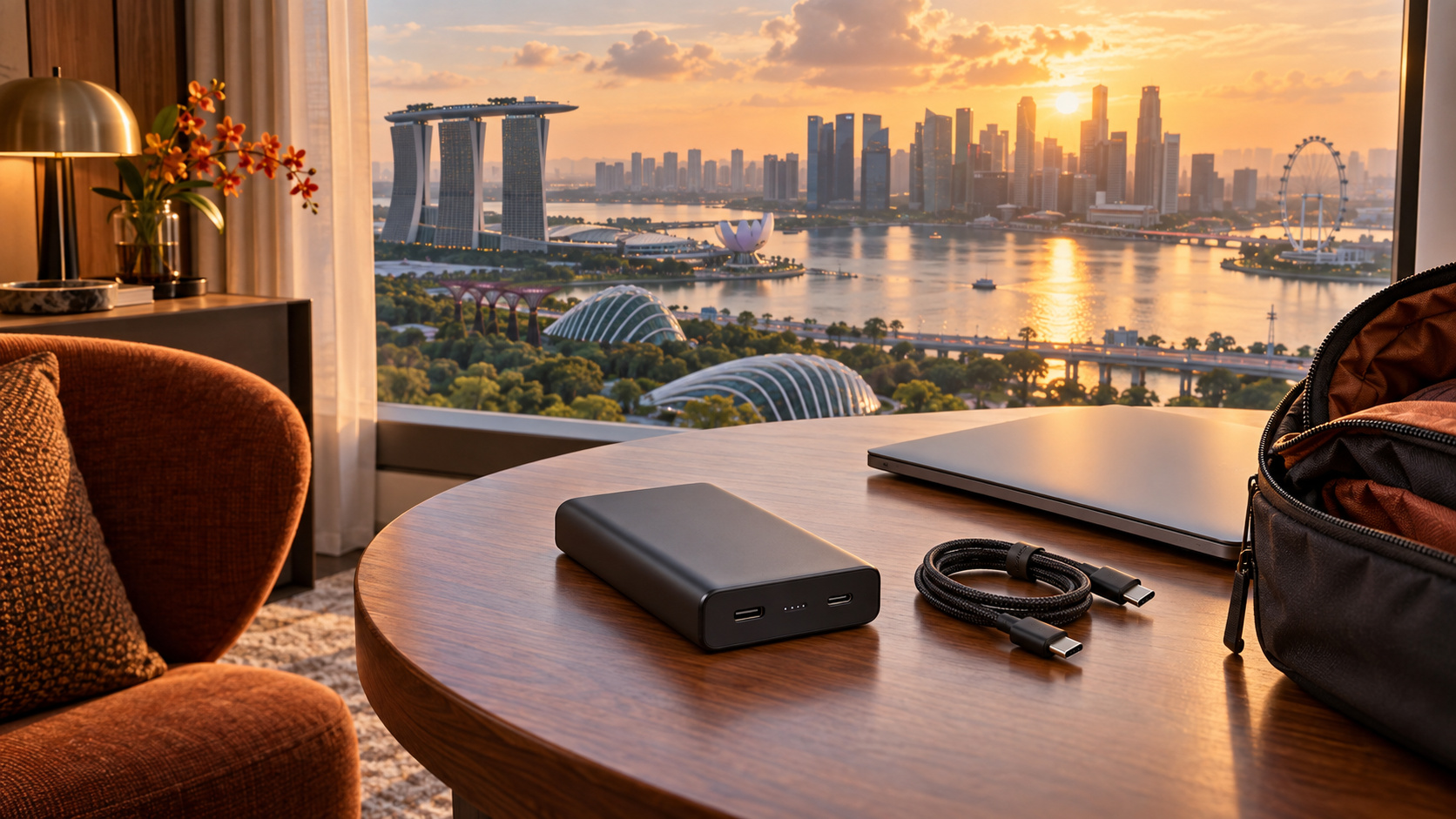
Airline Power Bank Rules 2026: What Still Flies in Your Carry-On
Check 2026 airline power bank rules: carry-on limits, watt-hours, Southwest restrictions and when you can use a portable charger onboard.
Read the field guide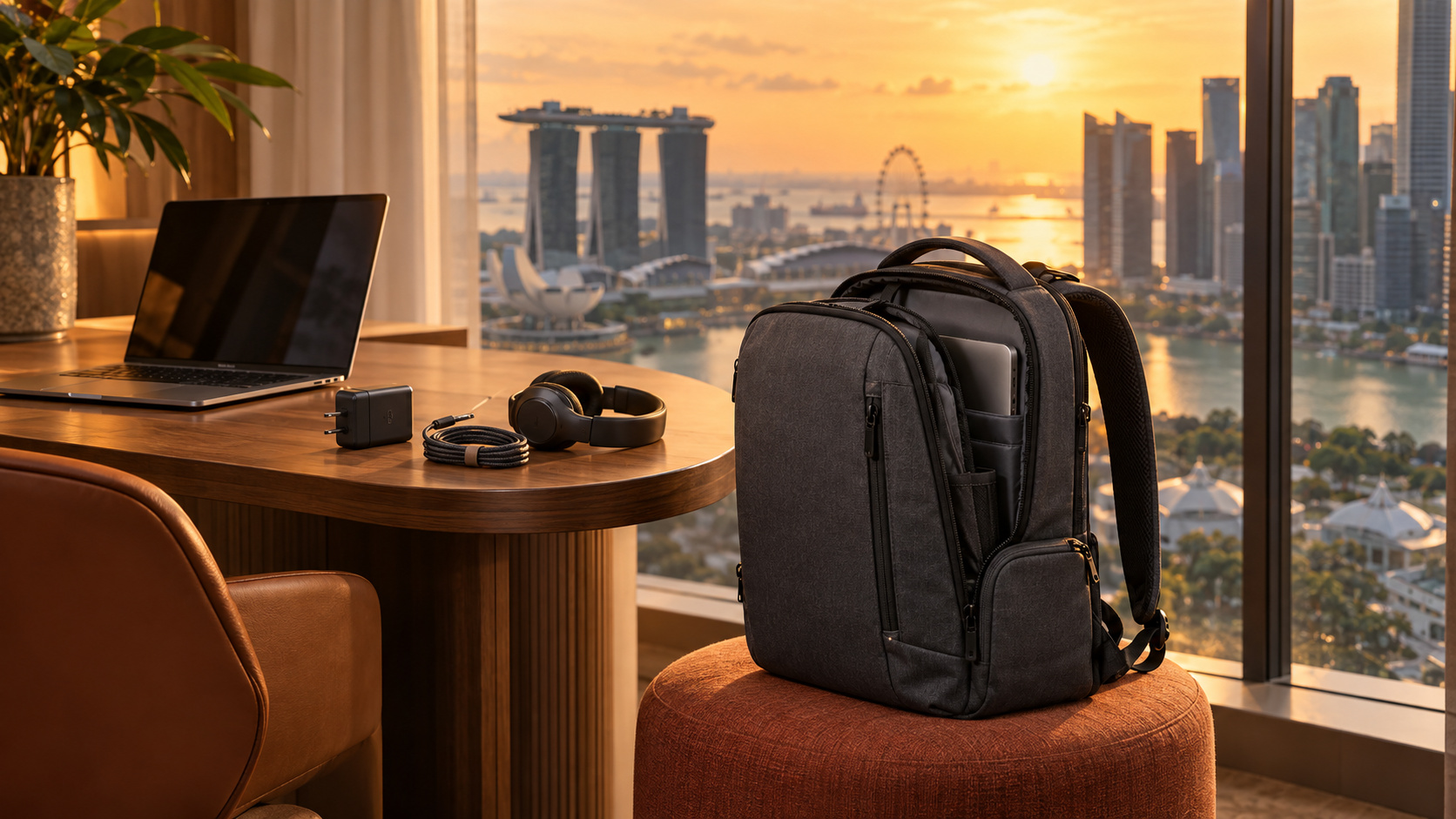
Coffee Shops Limiting Laptops? Build a Work Bag That Goes Anywhere
Build a work-from-anywhere bag with laptop fit checks, useful remote work essentials and a clear choice between Peak Design Everyday 20L and North Face Recon.
Read the field guide