
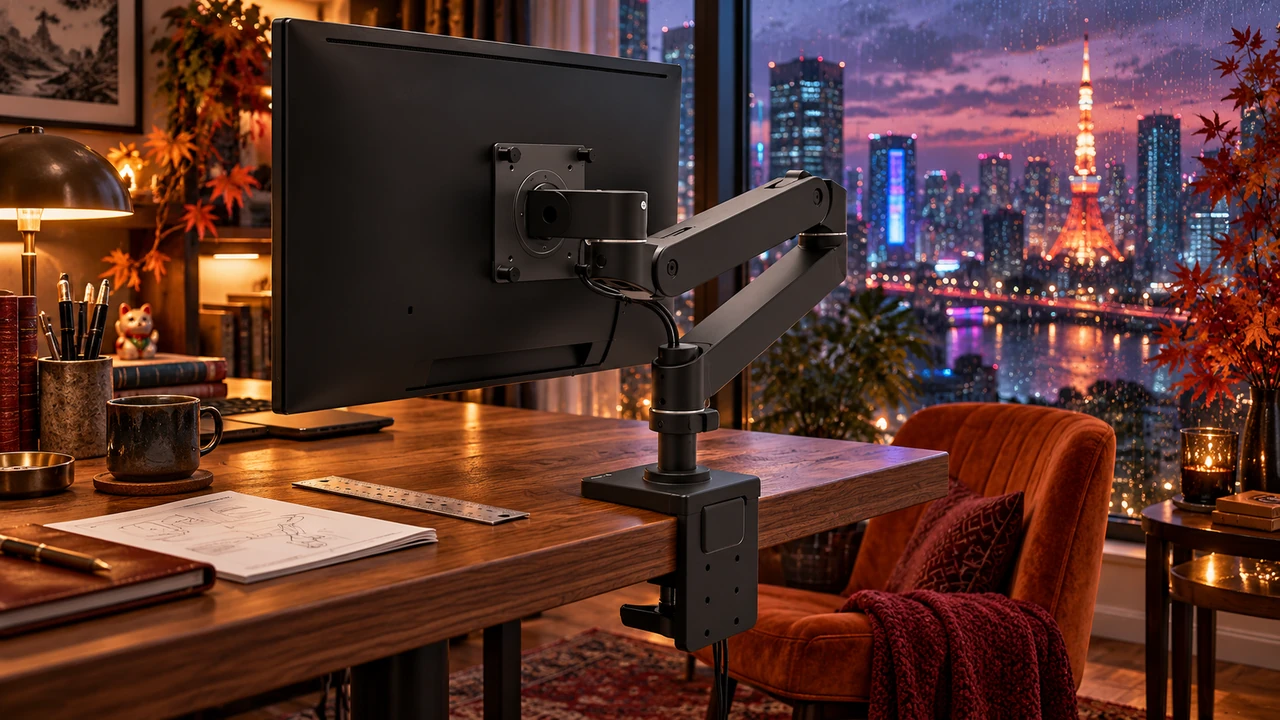
My heavy curved MSI sits on a VIVO dual desk mount. It slips and slowly tips down, so I readjust it every so often. Beside it, my smaller Acer stays on its own stand because it has no mounting holes.
The verdict: buy a monitor arm only after checking your tabletop, clamp clearance, monitor weight and mounting pattern. An arm can reclaim desk space and let you move the screen through your workday, provided the whole setup fits.
1. Start with the tabletop
An arm concentrates its load at the mount. Your desk’s total weight rating doesn’t settle whether that small area can support it.
IKEA’s LINNMON and LAGKAPTEN listings identify honeycomb paper filling and say these tops are unsuitable for installing a screen stand. Pass on mounting an arm to them.
A reinforcement plate can spread force across a larger area. It does not override the desk maker’s restriction or turn glass into an approved mounting surface. BenQ also flags glass, hollow-core and dent-prone tops as damage risks. Get compatibility confirmation from the desk and arm makers; otherwise, use the monitor’s stand or a suitable freestanding riser.
2. Measure where the clamp actually sits
Check thickness at the mounting point, then look underneath. A cable tray, support rail or beveled edge can stop the clamp from seating properly even when the thickness looks right.
Read the exact mount’s drawing. Ergotron’s LX Pro clamp fits tops up to 2.4 inches thick, with different positions for thinner tops. Other mounts have different limits.
Allow room behind the desk for the arm to fold, too. Otherwise, you may have to pull the desk away from the wall.
A grommet mount uses a desktop hole. An existing cable hole may fit; drilling isn’t automatically necessary. The tabletop still has to support the load.
3. Check weight and tilt separately
Look up your monitor’s weight without the stand, including attached accessories. Check both ends of the arm’s range: a screen below the minimum can rise even at the lowest lift tension.
Ergotron’s single-arm ratings:
| Arm | Monitor weight range |
|---|---|
| Ergotron LX Pro | 4–22 lb |
| Ergotron LX | 7–25 lb |
| Ergotron HX , standard pivot | 20–42 lb |
The LX Pro accommodates lighter screens than these other options. The classic LX extends the upper limit, but Ergotron warns that loads above 20 lb can reduce its vertical travel. Monitor depth can also affect capacity.
For a curved ultrawide, weight alone is insufficient. Ergotron distinguishes the standard HX from its HD Pivot version, specified for curved displays 6–12 inches deep and weighing 28–42 lb. Confirm your exact monitor and pivot combination before ordering.
My MSI’s tipping is an observation, not proof that the VIVO is overloaded. Lift tension and tilt resistance are separate adjustments. Follow the arm’s manual before replacing it, and don’t use adjustment to justify a load outside its rating.
4. Match the mounting holes
Common VESA patterns are 75 × 75 and 100 × 100 millimeters. Match the monitor and arm patterns, adapters and screw instructions.
Who should skip a monitor arm
Keep the stock stand if the desk won’t support the mount, the screen exceeds the arm’s limits, or there’s no compatible VESA attachment. For monitors without holes, check for a manufacturer-approved adapter first.
Before shopping, write down your desk model, mounting clearance, monitor model, stand-free weight and VESA pattern. Those details turn a promising product page into an actual fit decision.
Cited sources
- IKEA LINNMON installation restriction
- IKEA LAGKAPTEN installation restriction
- BenQ monitor-arm installation guide
- Ergotron LX Pro dimensional illustration
- Ergotron LX Pro specifications
- Ergotron LX specifications
- Ergotron LX product details and capacity qualifications
- Ergotron HX and HX with HD Pivot specifications
- Ergotron VESA mounting guide
More field guides
More Remote Office guides

Internet Down? A Calm Backup Plan for Working From Home
Test your phone hotspot, plan satellite power and sky access, and understand what off-grid radios can do when work internet fails.
Read the field guide
How Much Backup Power Does Your Home Office Really Need?
Size home-office backup power from measured watts, compare a UPS with a power station, and check transfer, charging and solar limits.
Read the field guide
The World Might End. Your 10 a.m. Call Will Not.
Keep working through power, internet and cloud outages: practical checks, backup layers and a calm message to send your boss.
Read the field guide