
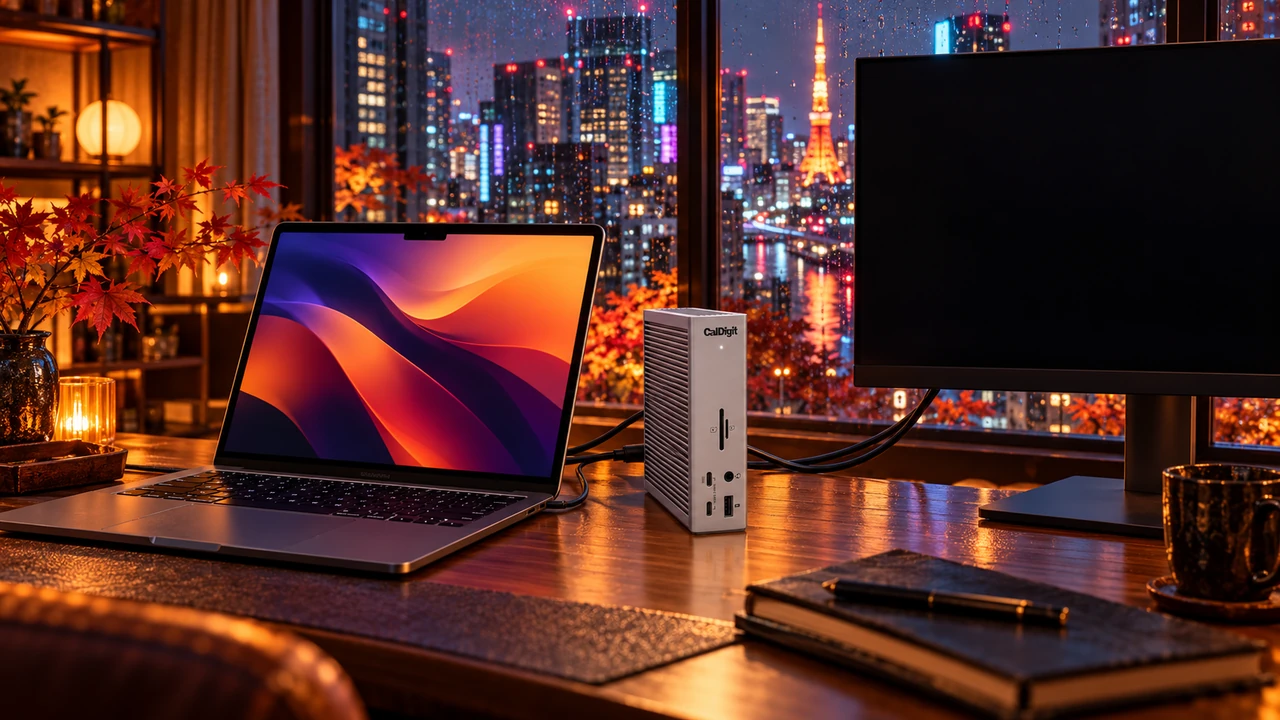
You sit down, tap a key and wait. The laptop wakes. The big monitor stays black. Unplugging the dock brings it back, but now your morning started with a hitch that creates unnecessary worry.
Verdict: keep the dock until you’ve narrowed down the fault. If your screen works before sleep, start with its selected input, then check detection and software. Replace it for a confirmed compatibility problem.
A black screen isn’t a diagnosis
I’ve had my laptop screen stay black while setting up wireless HDMI adapters for a portable monitor. I had to reboot. No dock was involved, and I didn’t establish the cause. I’m reluctant to blame whichever box happens to be closest to the cable.
A dock adds connections and, sometimes, display software. Reconnecting everything tells you the setup can recover; it doesn’t tell you which part failed.
Start at the monitor
Open the monitor’s own menu and select the input you’re actually using: HDMI, DisplayPort or USB-C. If automatic input selection is enabled, try turning it off.
Plugable recommends this for Macs whose external screens disappear after sleep or startup. In some configurations, scanning inputs interferes with display detection. This is a useful test, not proof that every black screen has the same cause.
Change one setting, put the computer to sleep, then wake it again. Repeat before declaring victory. Manual selection means switching inputs yourself when you use another computer.
Some monitors also have a separate deep-sleep setting. Check the model’s documentation before changing it; monitor menus aren’t interchangeable.
Ask the computer to find it again
On Windows, press Windows + Ctrl + Shift + B. Microsoft recommends this shortcut for blank screens; you may hear a beep or see a flicker. Check Windows + P too, and choose Extend if that’s how you normally work.
On a Mac, open System Settings > Displays, hold Option, then click Detect Displays. Apple also recommends testing a direct connection to the Mac when a screen connected through a dock stays dark.
Try that direct connection with the same monitor and video cable, where your ports allow it. If it wakes reliably, you’ve narrowed the problem to the dock path. You haven’t proved the dock itself is defective.
Test with the lid open. For closed-lid Mac use, Apple specifies external power, a keyboard and a mouse.
Update the parts you actually have
Check your computer maker’s graphics and firmware updates, your dock’s support page and your monitor’s firmware instructions. If the problem began immediately after a graphics update, Microsoft’s troubleshooting guidance includes rolling that driver back.
For a DisplayLink dock on macOS, confirm DisplayLink Manager is running and has its required screen-recording permission. Native Thunderbolt video doesn’t use that software. Don’t install DisplayLink simply because your dock has a USB-C plug.
Leave broad Windows power changes out of the first round. Microsoft recommends keeping USB selective suspend enabled. A model-specific support instruction is a better reason to change it than a forum checklist.
Replace for compatibility, not hope
The CalDigit TS4 offers native Thunderbolt video, but your laptop must support your display arrangement. It cannot give a base M1 or M2 MacBook 2 native external screens.
For supported configurations needing DisplayLink, the Plugable UD-6950PDH is an option, with software and permissions to maintain. Neither is a verified cure for your wake problem.
Who should skip a replacement
If your monitor also fails when connected directly, investigate that connection before buying another dock.
Tonight, select the monitor’s input and test a sleep cycle. If that fails, write down what changes when you bypass the dock. Give support that result before giving a retailer your money.
Cited sources
- Plugable: monitors not detected after Mac sleep or startup
- Microsoft: troubleshooting blank screens
- Apple: external display dark or low resolution
- Microsoft: USB selective suspend
- CalDigit: TS4 compatibility
- Plugable: UD-6950PDH specifications and support
More field guides
More Remote Office guides
Best USB-C Docks for Dual Monitors 2026: Dual 4K, Power Delivery & Top 2 Picks
Compare 2 USB-C docks for dual monitors by dual 4K support, laptop charging, ports and Mac compatibility. Check Thunderbolt and DisplayLink trade-offs.
Read the field guide
Internet Down? A Calm Backup Plan for Working From Home
Test your phone hotspot, plan satellite power and sky access, and understand what off-grid radios can do when work internet fails.
Read the field guide
How Much Backup Power Does Your Home Office Really Need?
Size home-office backup power from measured watts, compare a UPS with a power station, and check transfer, charging and solar limits.
Read the field guide