
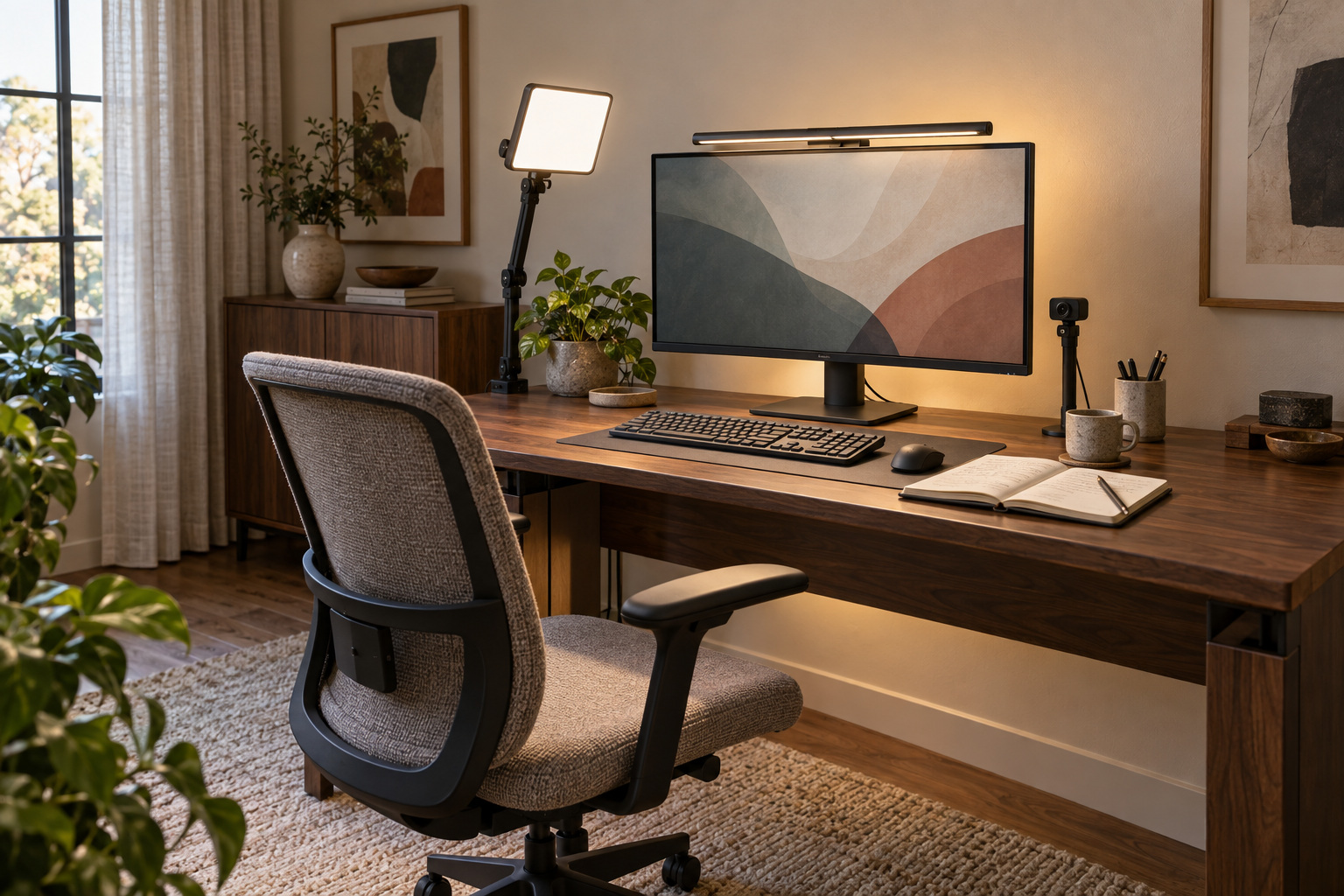
A desk light can look steady to your eyes and still paint dark bands across your webcam image. The room looks fine. Your meeting preview disagrees.
The verdict up front: identify the offending light and check your camera’s anti-flicker settings before buying anything. Use task lighting for papers and keys, ambient light for the room, and a soft front light if your face needs it. One fixture rarely solves all 3 jobs.
Why a steady-looking desk light can cause webcam banding
Some LED lights vary their output rapidly, including when dimmed. A camera that reads its sensor line by line can capture different brightness levels within one frame. The result is bands or pulsing that you may never notice looking around the room.
Sony explains the interaction between flickering light and camera exposure, including LED flicker beyond ordinary mains-related frequencies. That means a power-line setting can help, but it is not a universal cure. A “flicker-free” label alone does not establish compatibility with your webcam at every brightness.
Start with a 5-minute camera check
Open your usual call app with your normal resolution and frame rate. Turn room lights off one at a time, leaving enough light to see the preview. When the bands disappear, you have a useful lead.
If your webcam software offers anti-flicker or power-line frequency, match your local electricity supply: 60 Hz in the US and Canada, for example, and 50 Hz in the UK and Australia. Check locally elsewhere; entire continents do not share one setting.
For cameras with manual exposure, Sony suggests trying 1/60 or 1/120 second in 60 Hz regions, or 1/50 or 1/100 in 50 Hz regions. Available controls depend on the camera, and those settings may not solve high-frequency LED flicker.
Sweep the suspect lamp through low, middle, and high brightness. Watch your face and a plain wall, then record a short clip. Repeat after waking the computer. A 5-minute check is a useful start, not a guarantee.
Make the desk comfortable before adding more output
If the screen feels glaring against a dark room, add gentle ambient light and reduce screen brightness to suit the surroundings. Reposition the task lamp until its reflection leaves the display.
For calls, try soft window light from in front and slightly to one side. If that works during your meeting hours, keep your money. A lamp illuminating your notebook will not necessarily put useful light on your face.
Buy the layer your room is missing
The BenQ ScreenBar Halo 2 fits a desk that needs task light and illumination behind the monitor without another lamp base. BenQ documents its front and rear lighting and motion sensor. The catch: it may turn off after 5 minutes without significant movement. Check monitor and webcam clearance before ordering, especially with a built-in camera.
For front lighting, the Elgato Key Light Air MK.2 offers a clamp-mounted panel and onboard touch controls. Its official specifications list a 319 × 207 × 33 mm panel. Allow space beside the screen, not just space for the clamp.
Power matters: Elgato lists roughly 400 lumens with a 7.5W supply and up to 2,100 with 27W or more. The standard box excludes a power adapter. Check your supply and bundle contents instead of assuming every USB-C port delivers full brightness.
Who should skip a new light?
Skip the monitor bar if papers are already easy to read and only your face looks dim. Skip the panel if daylight gives you a stable picture when you actually take calls.
Keep a setup that works. Judge desk lighting from the chair, then judge video lighting in the recorded frame.
More field guides
Research the next purchase
Choose the room or problem you are working on next.
Browse all guides